Last Updated on 16 Nov 2026
CV Screening in RecruitCRM Before Client Submission
Share in

Introduction
CV screening in Recruit CRM starts with the client’s job brief and the resumes on the candidate profiles you plan to review. The CrossClassify Chrome side panel compares those resumes with one selected description and displays job match signals alongside a separate CV risk result. Use that evidence to prepare a shortlist and resolve open questions before submission.
Request a Recruit CRM CV screening demo
A staffing agency is ready to submit a shortlist for a full-stack developer role. Several candidates list JavaScript and React. The client also needs someone who can maintain an existing Node.js service. One recruiter remembers seeing backend work in a CV, but the colleague preparing the submission only has a note that says “strong JavaScript.” The agency needs to establish who has relevant backend experience and what should be confirmed before the client sees the shortlist.
A consistent review gives the team a way to answer both questions. It keeps the job description, the CV passage and any follow-up tied to the same decision. The CrossClassify CV Checker for RecruitCRM opens as a Chrome side panel beside the candidate list or profile, so the recruiter can review the results while working in the ATS. Explore the CrossClassify CV Checker
Where Recruit CRM’s own tools fit
Recruit CRM’s AI Resume Parser helps turn uploaded resumes into structured candidate records. Its AI Job Candidate Matching feature helps recruiters find and rank people for a job from their database or Recruit CRM’s Global Database. The CrossClassify workflow shown here starts with a different task in the same recruiting process. You already have candidates on the page and want to inspect their profile CVs against a client brief before deciding who to present. Recruit CRM’s AI Resume Parser · Recruit CRM’s AI Job Candidate Matching
Set one client brief for the profile scan
Confirm the candidates and the source CV
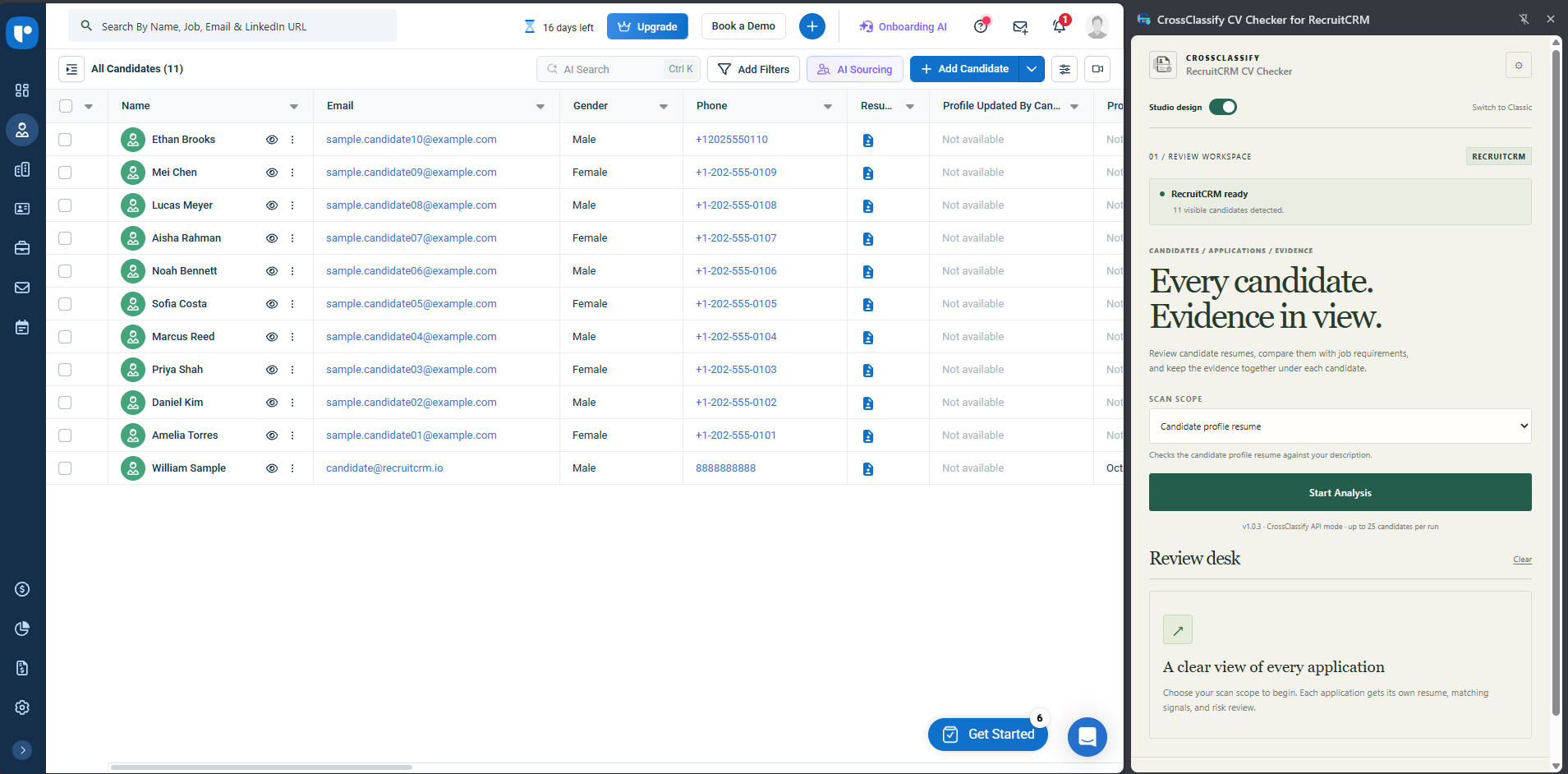
Start on the Recruit CRM Candidates page. Filter the list to the people you intend to review, open the side panel and check its visible-candidate count. In the version shown, the panel lists up to 25 candidates per run. If the list spans pages, track the groups you cover and use the panel’s count to confirm what is in scope. Recruit CRM’s guide to the Candidates list
The screenshots show Candidate profile resume as the scan scope. Check the profile’s resume field when a candidate has sent an updated CV. Recruit CRM can also store separate documents against an assigned job, which matters when the candidate tailors a resume for that client. If a role-specific file contains experience that the profile resume omits, open it in Recruit CRM before finalizing the review. Recruit CRM’s guide to job-associated files
Check that the job description reflects what the client agreed to
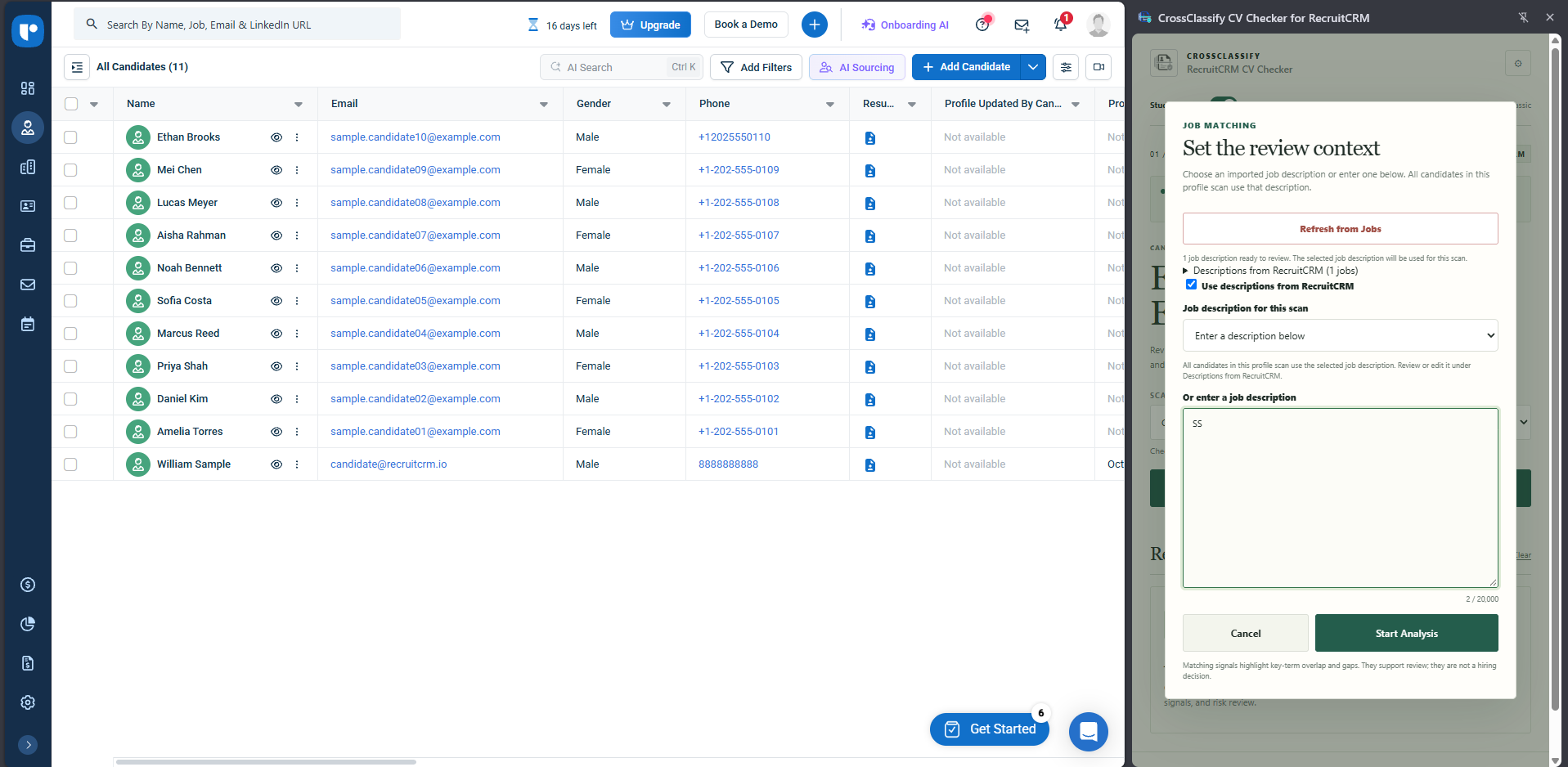
In the review setup, choose a job description imported from Recruit CRM or enter one directly. Everyone in the profile scan is compared with that same description. Use a separate scan when you move to a vacancy with different requirements. If an account manager revises the brief after a client call, confirm which version the team intends to use before starting analysis.
For the full-stack vacancy, write the distinction into the brief. If maintaining Node.js services is essential, say what that work involves. If React is preferred, give it that status. This helps reviewers interpret a missing term and agree on the questions that could change a submission decision.
Check the run as results come in
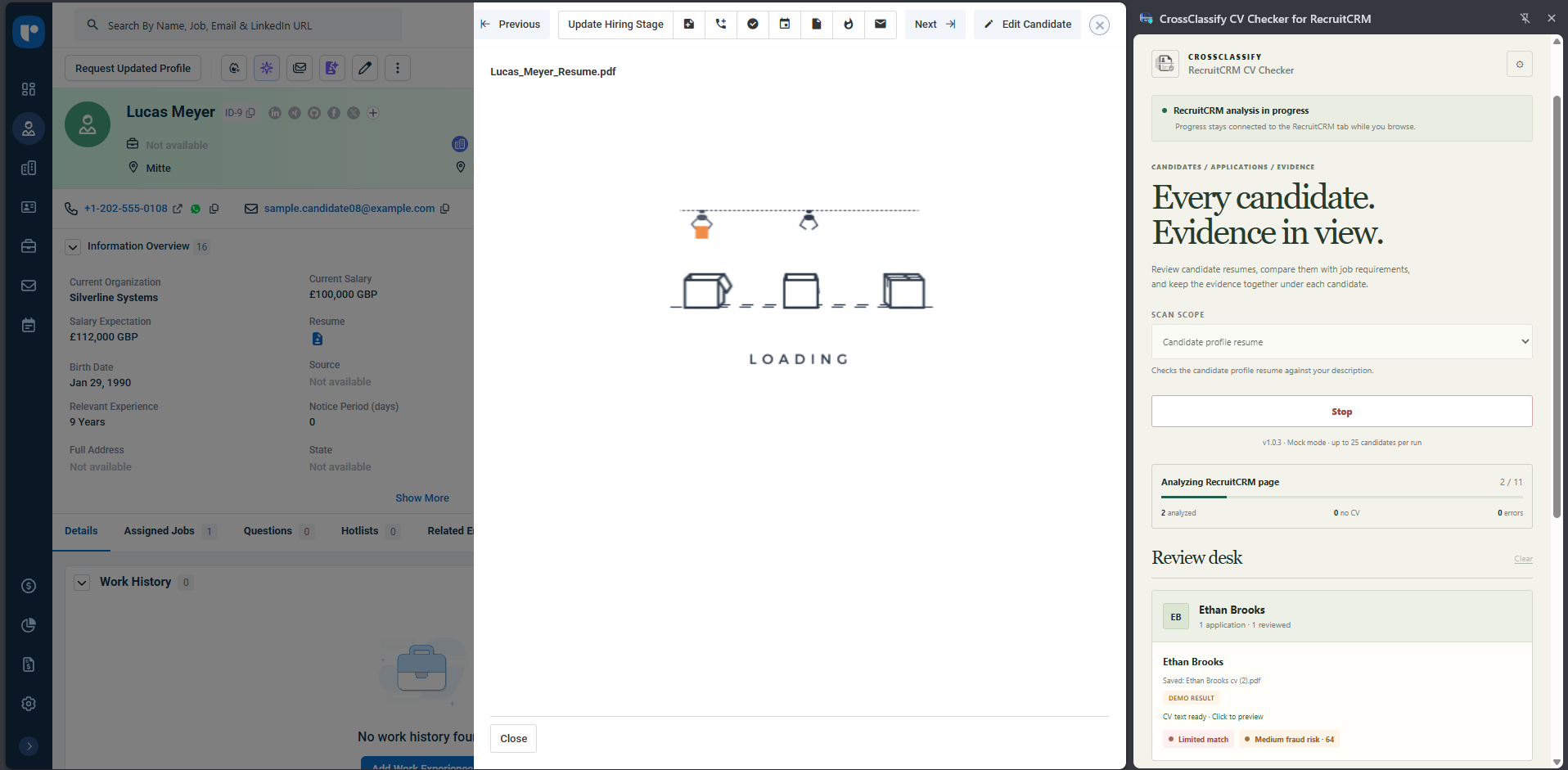
Open the first result to check that the resume and client brief are the ones you expected. If the run is using the wrong description, use Stop to interrupt it and correct the setup.
Read the match signals before writing a submission note
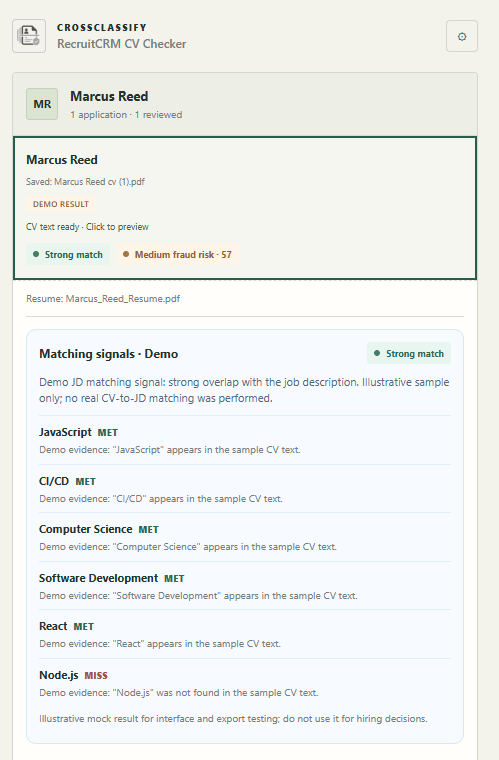
In the sample result, JavaScript and React appear as matching terms, while Node.js is marked as missing. The card still displays a strong overall match. If Node.js is essential to the client, open the relevant CV passage and check how the candidate describes their backend work. “Which Node.js services did you maintain, and what did you personally deploy or support?” is specific enough to confirm what the client needs to know. CrossClassify’s guide to interpreting job match signals
Give each type of evidence its own next step
A missing match term points to a requirement the recruiter should check in the CV or discuss with the candidate. A CV risk result raises a separate question about a claim or inconsistency. For example, a recruiter might ask which services a candidate maintained to clarify role fit, and confirm the dates of two overlapping positions to clarify the employment timeline. Either answer may help the agency describe the candidate’s experience more precisely. CrossClassify’s guide to CV risk analysis
Use the original CV and the candidate’s explanation to decide what can go in the submission. If production Node.js experience remains unconfirmed, keep that distinction in the internal notes and settle it before presenting the person as having that experience. If the client accepts adjacent backend experience, say which technology the candidate actually used and how that work relates to the vacancy.
Reconcile the export before sharing the shortlist
The sample run reached 11 of 11 candidates. Its summary shows 10 analyzed, zero missing CVs and one error. The completion indicator tells you the run reached the end of its scope. The three counters tell you which results are available for review. Open the affected candidate record and confirm whether the resume is accessible before rerunning the review or following up through your usual process.
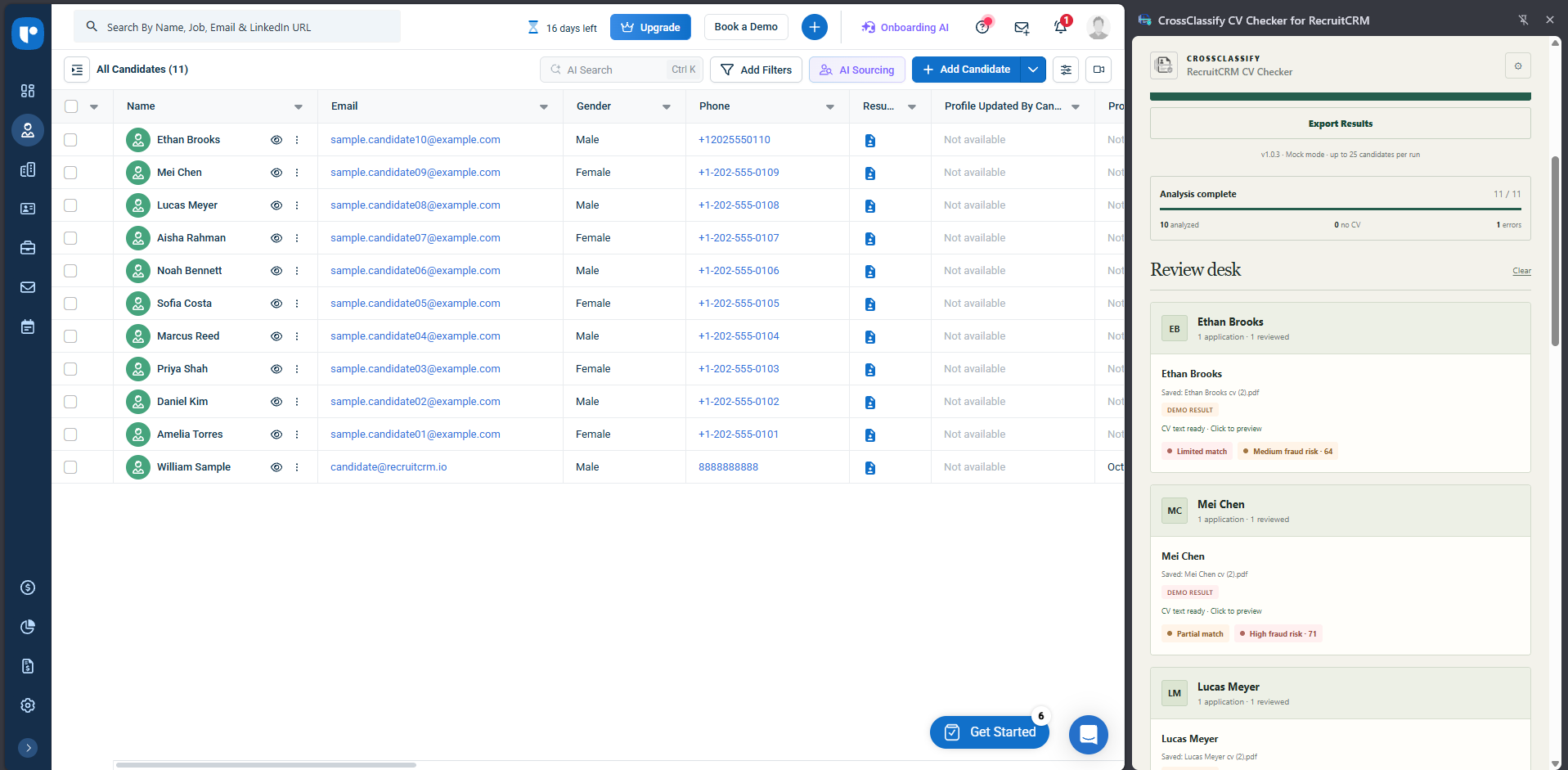
Use Export Results to keep a record of the run for the recruiting team. Check the export against the panel and the approved job brief before relying on it. For any unresolved row, record the candidate, the reason the review is pending and who will handle it. If the account manager needs a shortlist immediately, they can see which candidates have a completed review and which still need a source check.
Convert the review into a client-ready note
A useful note gives the client evidence against their brief and makes clear where the candidate’s experience needs a follow-up. For example, “Built and maintained React interfaces for an internal scheduling tool. Backend service ownership is being confirmed.” Once the candidate clarifies their responsibilities, update the note with the system they worked on and what they owned.
Copyable internal handoff · Candidate and client role / evidence from the CV / requirement to confirm / owner and next step
Recruit CRM’s Submit Candidates feature can share candidates assigned to the job and lets recruiters choose the profiles and fields visible to the recipient. Keep internal review details in the recruiting team’s records and use the client submission to share the relevant evidence and approved candidate details. Recruit CRM can also collect feedback through its Online Candidate List, which gives the team a place to see whether the client’s requirements need to be clarified for the next shortlist. Recruit CRM’s candidate submission guide · Recruit CRM’s guide to client feedback
Test the handoff on one vacancy
Try the workflow with sample CVs for one client role. Include a strong match with an unanswered requirement and a candidate whose CV needs manual follow-up. Ask a colleague who did not run the scan to explain the basis for each submission decision. Check whether they can tell which job brief was used, which evidence supports the submission and who owns the open questions.
Request a walkthrough of CV screening in Recruit CRM with CrossClassify.
Review More CVs Without Repeating the Same Comparison
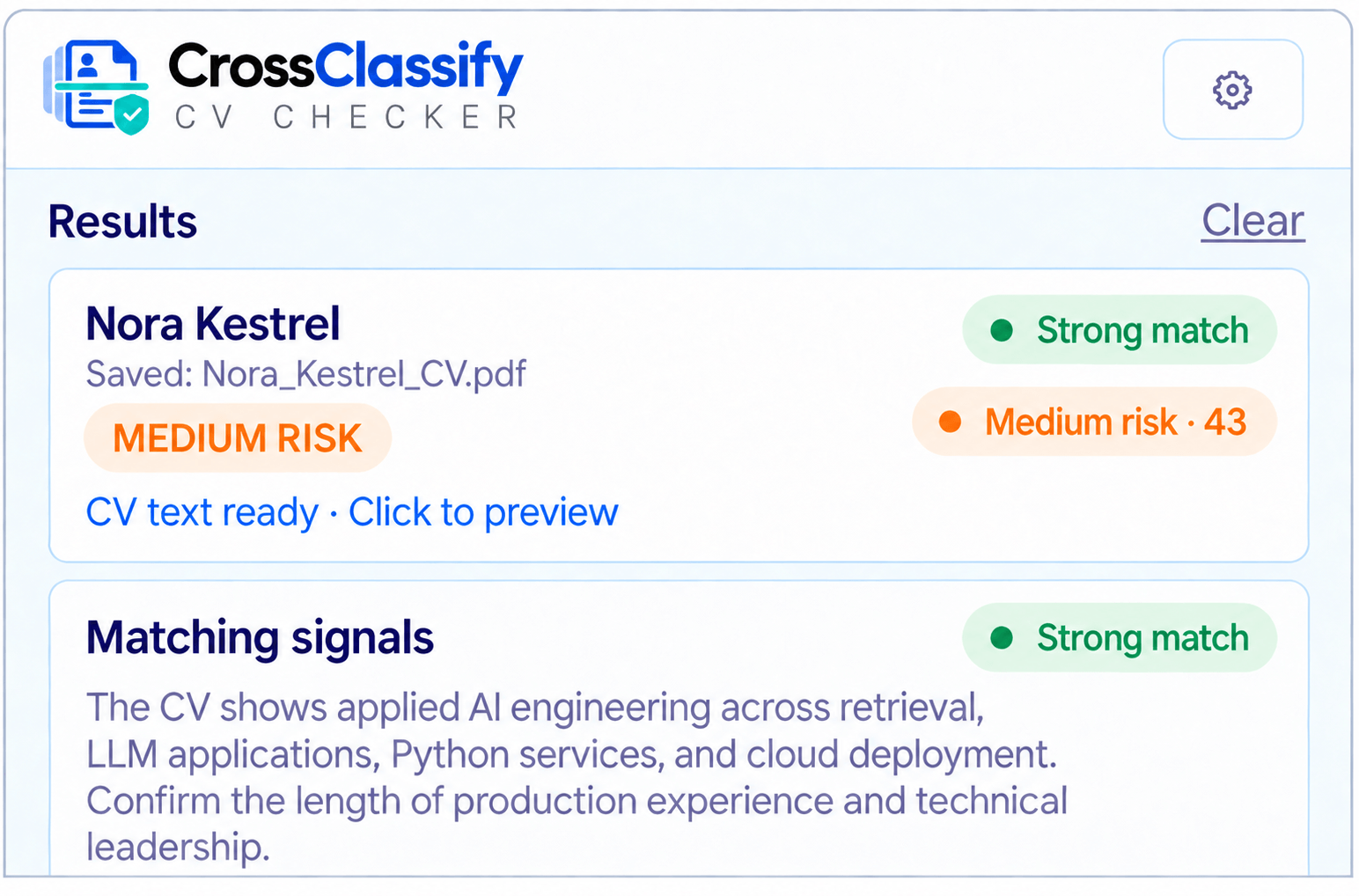
Use structured positive and negative match signals to move through candidate reviews with less repetitive comparison.
Explore CrossClassify today
Detect and prevent fraud in real time
Protect your accounts with AI-driven security
Try CrossClassify for FREE—3 months
Share in
Related articles



Frequently asked questions
Let's Get Started
Create your free
account today
Discover how to secure your app against fraud using CrossClassify
No credit card required